
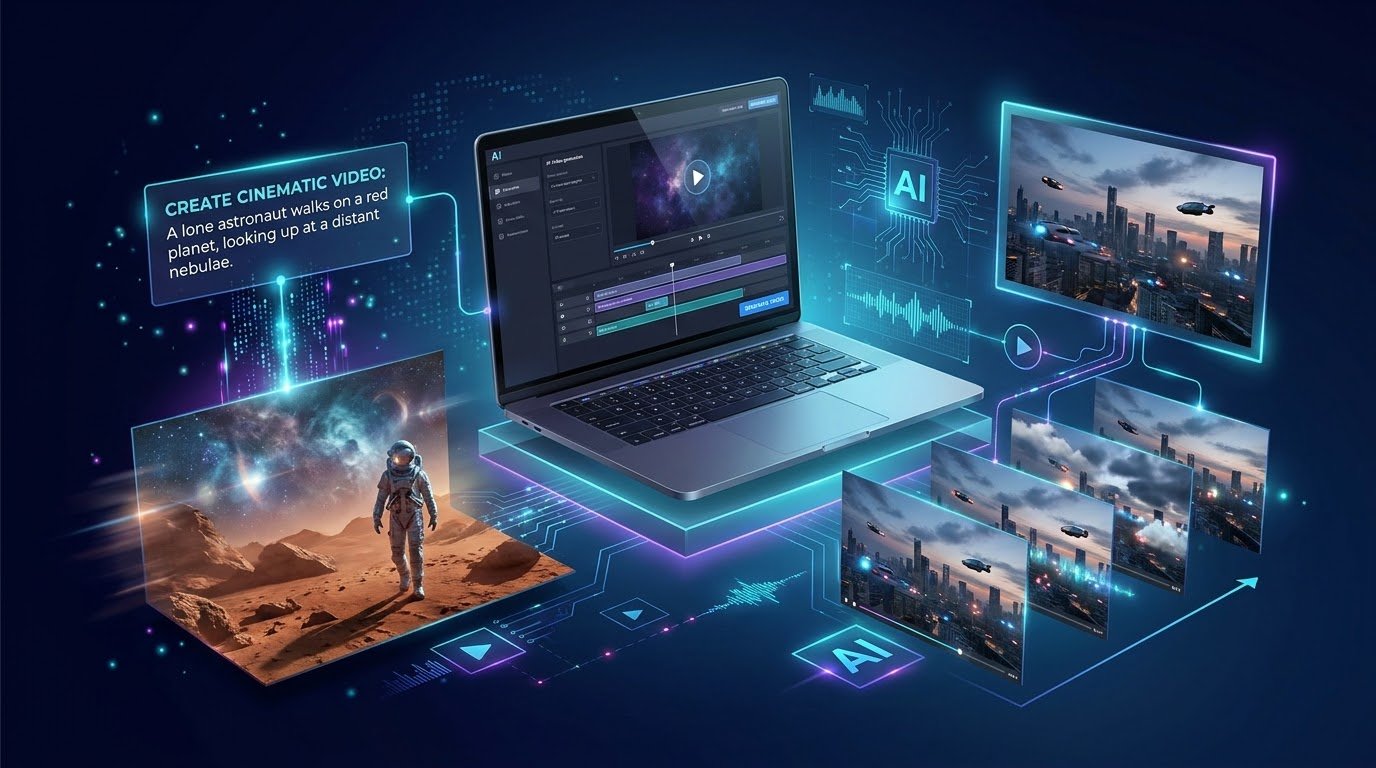
How to Create Professional AI Videos from Text and Images in 2026
Artificial intelligence is transforming the way people create and edit videos. In the past, producing a professional-looking video often required expensive cameras, editing software, animation skills, and hours of manual work. Today, AI-powered video generation tools allow creators to turn written descriptions and still images into moving visuals with much less effort.
Whether you are a beginner, content creator, digital marketer, student, or business owner, AI video technology can help you explore new creative possibilities. You can describe a scene in words, upload an image, and use an AI video generator to create a short video based on your instructions.
However, getting impressive results is not simply about entering a few words into a tool. You need to understand how text-to-video and image-to-video generation work, how to write effective prompts, how to choose the right tools, and how to improve the final result through editing.
In this beginner-friendly guide, you will learn how to create professional AI videos from text and images in 2026. We will cover the complete process, from selecting an AI video generator to writing detailed prompts, generating clips, editing scenes, and preparing your final video for social media or other platforms.
What Is AI Video Generation?
AI video generation is a technology that uses artificial intelligence models to create or transform video content. Instead of recording every scene with a physical camera, users can provide written instructions, reference images, or other supported inputs to generate visual sequences.
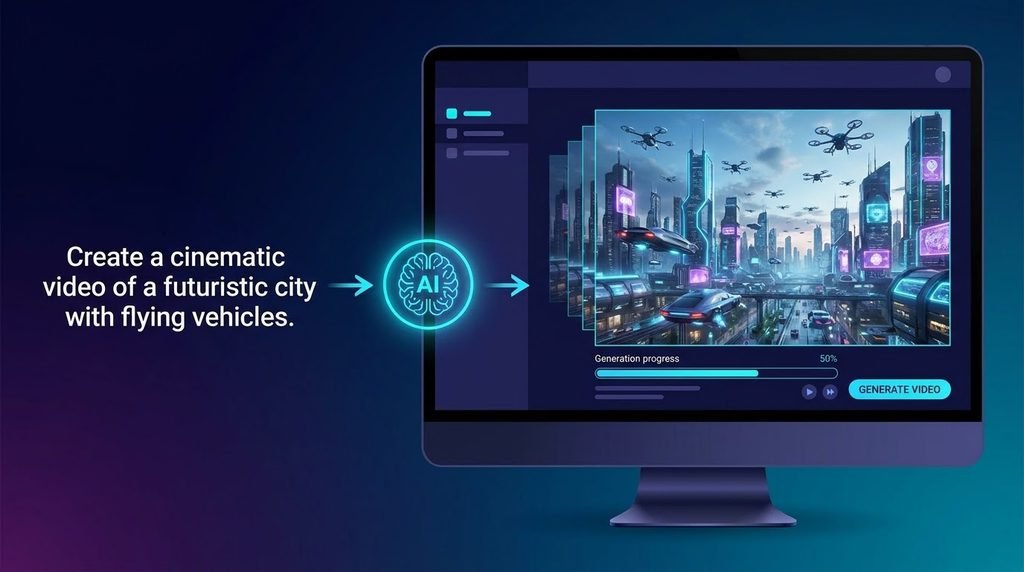
For example, you could write a prompt describing a futuristic city at sunset with flying vehicles moving between skyscrapers. An AI video generation tool may use that description to create a short animated scene.
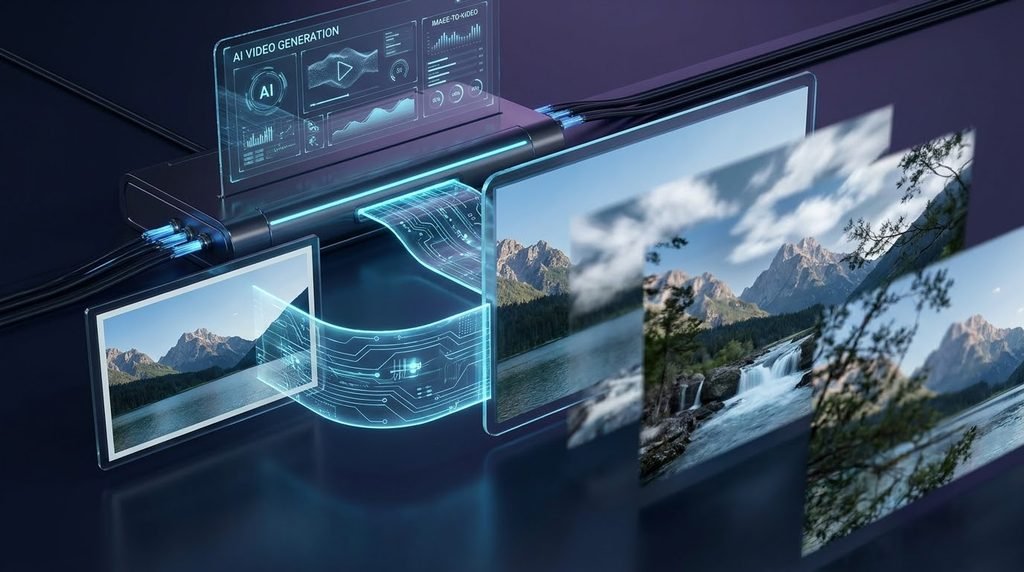
Similarly, you could upload a photograph of a beautiful mountain landscape and instruct the AI to animate the clouds, move the camera forward, and add gentle environmental motion.
AI video generation can be useful for:
- Creating short videos for social media platforms.
- Producing cinematic scenes and creative visual stories.
- Animating photographs and illustrations.
- Developing marketing and promotional videos.
- Creating educational visuals and explainers.
- Producing concept videos for creative projects.
- Experimenting with animation and storytelling ideas.
How Does an AI Video Generator Work?
AI video generators use machine learning models trained to understand visual information and patterns in video data. Depending on the tool, these systems can interpret text descriptions, analyze reference images, and generate sequences of frames that form a moving video.
Although the technical process can be complicated, using these tools is usually straightforward.
1. Text-to-Video Generation
Text-to-video is a feature that allows you to generate a video by describing what you want to see. You enter a written prompt, and the AI model attempts to create a visual sequence that matches your description.
For example, you could enter:
“A cinematic aerial view of a modern city at night, glowing buildings, moving traffic, realistic lighting, slow camera movement, and detailed architecture.”
The AI generator uses the prompt to produce a video clip. The final result depends on the model, prompt quality, supported settings, and generation process.
2. Image-to-Video Generation
Image-to-video generation starts with an existing picture. Instead of creating an entire scene from a written description, you provide an image and explain how you want it to move.
For example, you can upload a photograph of a car and ask the AI to create a cinematic video showing the vehicle driving along a mountain road.
This approach is particularly useful when you want to preserve the original appearance of a subject while adding motion.
3. AI Video Editing and Enhancement
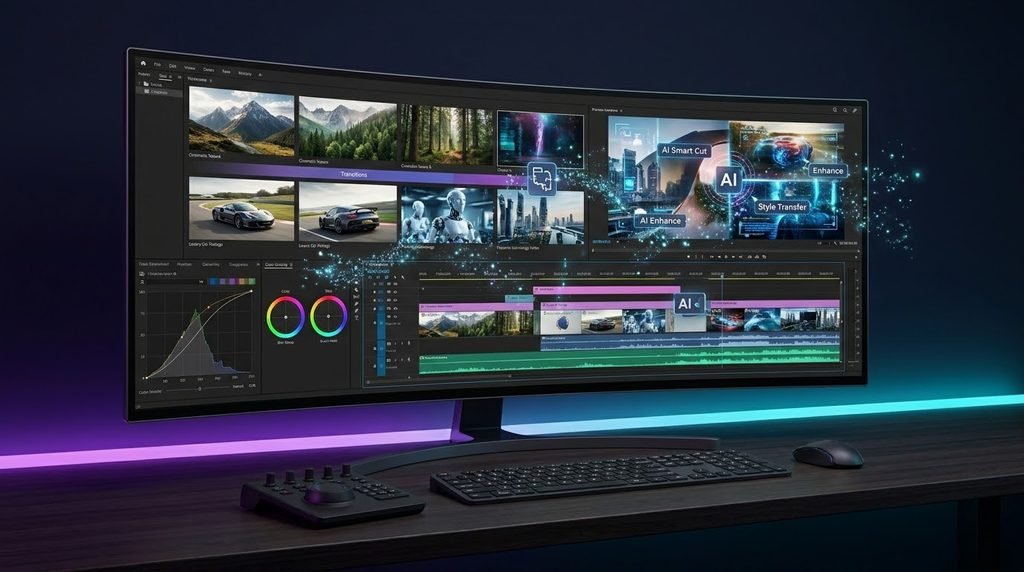
Some AI tools also provide editing and enhancement features. Depending on the platform, these may include background removal, automatic captions, object tracking, visual effects, video extension, and other editing capabilities.
These features can help improve a generated clip, but they do not automatically guarantee professional results. Reviewing and editing the final video is still important.
Text-to-Video vs. Image-to-Video: What Is the Difference?
Both methods can produce creative video content, but they are designed for slightly different purposes.
Text-to-Video
Text-to-video is a good choice when you want to create a scene from your imagination. You do not need to provide an existing photograph. Instead, you describe the subject, environment, action, lighting, and camera movement.
Image-to-Video
Image-to-video is useful when you already have a visual reference. It can help animate product photographs, landscapes, character illustrations, and other images.
For beginners, experimenting with both methods is a good way to understand how different AI video tools interpret instructions.
What Do You Need Before Creating Your First AI Video?
You do not need a professional film studio to begin. A computer or compatible smartphone, an internet connection, a clear creative idea, and access to an AI video generation service are enough to start experimenting.
Before generating your first video, prepare these basic things:
- A video idea: Decide what story, subject, or scene you want to create.
- A written prompt: Describe the visual details and movement clearly.
- A reference image: Prepare a suitable image if you want to use image-to-video generation.
- An AI video tool: Choose a platform that supports the type of video you want.
- An editing application: Use an editor to arrange clips, add captions, and improve the final presentation.
Having a clear plan before starting can save time and reduce unnecessary generation attempts.
Best Types of AI Video Tools to Explore in 2026
There are many AI video generation platforms available, and each one may offer different features, pricing plans, generation limits, and output quality. The best option depends on your creative goals and budget.
Here are some platforms worth exploring:
1. Google Flow
Google Flow is a creative filmmaking tool designed to help users develop visual scenes and stories using generative AI. It is worth exploring if you want to experiment with cinematic storytelling and AI-generated video sequences.
2. Runway
Runway provides AI-powered creative tools for generating and editing visual content. Depending on the available model and plan, users can explore text-based generation, image-based video creation, and other creative features.
3. Kling AI
Kling AI is another platform worth exploring for AI video generation. It offers tools for creating visual sequences from prompts and images, with features that may vary by model and subscription plan.
4. Pika
Pika focuses on creative AI video generation and visual transformations. It can be useful for experimenting with short clips, imaginative scenes, and different visual styles.
5. Adobe Firefly
Adobe Firefly provides generative AI features for creative workflows. Its video capabilities and integrations can be useful for users who want to explore AI-assisted content creation alongside other Adobe tools.
Before selecting a platform, check its official website for current features, supported countries, export options, commercial-use conditions, and pricing. Free plans and generation limits can change.
Step-by-Step: How to Create AI Videos from Text
Now that you understand the basic technology and available tools, let’s create a video using the text-to-video method.
Step 1: Choose a Video Concept
Start by choosing a simple idea. Your first project should focus on one clear scene rather than a complicated story with many different actions.
For example, you could create:
- A cinematic sunset over a beautiful beach.
- A luxury sports car driving through a city.
- A futuristic robot walking through a modern laboratory.
- A peaceful village surrounded by green mountains.
- A professional product advertisement.
Choose a concept that can be explained clearly in a few sentences.
Step 2: Write a Detailed AI Video Prompt
The prompt is one of the most important parts of AI video generation. It tells the model what kind of scene you want to create.
A useful prompt should explain the subject, action, environment, camera movement, lighting, and visual style.
Consider this example:
“A beautiful red sports car driving along a winding mountain road during golden hour. The camera follows the car from a low rear angle, realistic reflections on the vehicle, natural sunlight, cinematic atmosphere, smooth motion, and detailed mountain scenery.”
This prompt provides more useful information than simply writing “make a car video.”
Step 3: Open Your Selected AI Video Generator
Visit the official website of your chosen AI video platform and sign in if required. Look for a feature such as Text to Video, Generate Video, or a similar option.
The exact interface may differ between platforms. Some tools allow you to select a model, aspect ratio, duration, or other settings before generating the video.
Step 4: Enter Your Prompt
Copy your prepared description into the prompt field. Review it before generating the video.
Make sure the instructions are clear and avoid including too many unrelated actions. A simple, focused prompt is often easier for an AI model to interpret than a paragraph containing multiple conflicting ideas.
Step 5: Select Video Settings
Choose the settings that match your project. Depending on the platform, you may be able to select:
- Aspect ratio: 16:9 for landscape videos or 9:16 for vertical videos.
- Duration: The length of the generated clip, based on supported options.
- Resolution: The available output quality.
- Visual style: Realistic, cinematic, animated, or another supported style.
- Generation model: A model offered by the platform.
For YouTube Shorts, Instagram Reels, and TikTok, vertical video is generally a suitable format. For traditional YouTube videos, landscape format is often more appropriate.
Step 6: Generate and Review Your Video
After selecting your settings, submit the prompt and wait for the platform to generate the clip.
Once the video is ready, review it carefully. Check whether the main subject looks correct, whether the movement is natural, and whether the scene matches your original idea.
If the result is not satisfactory, adjust the prompt and try again. You may need several attempts to achieve the visual quality you want.
How to Create AI Videos from Images
Image-to-video generation is a useful method when you already have a photograph or illustration that you want to animate.
Step 1: Select a Suitable Image
Choose a clear image with a visible subject. High-quality reference images can make it easier to communicate the appearance and composition you want to preserve.
For example, you could select a photograph of a landscape, vehicle, building, product, or fictional character that you have permission to use.
Step 2: Upload Your Image
Open an AI video generator that supports image-to-video functionality. Select the image upload option and provide your reference image.
Check the supported image formats and file-size requirements before uploading.
Step 3: Describe the Movement
Explain how the image should become a moving scene. Focus on the motion rather than repeating every visual detail already visible in the photograph.
For example:
“Animate this mountain landscape with slowly moving clouds, gentle wind moving the grass, subtle camera movement toward the mountains, and realistic natural lighting. Preserve the original landscape composition.”
Step 4: Generate and Check the Result
Generate the video and inspect the result. Pay attention to changes in the original subject, unnatural movement, distorted objects, and inconsistent details.
If the tool supports additional generation settings, experiment with them carefully to improve the result.
How to Write Better AI Video Prompts
Writing effective prompts is an important skill for anyone who wants to create high-quality AI videos. A video generator needs clear instructions to understand what should appear in a scene and how the objects should move.
A short prompt can work for a simple scene, but detailed instructions often provide better creative control. The goal is not to write the longest possible description. Instead, include the information that matters most.
1. Describe the Main Subject
Start by identifying the main subject of your video. It could be a person, animal, vehicle, product, building, or imaginary character.
For example, instead of writing “a car,” describe it as “a black luxury sports car with a modern aerodynamic design.” This gives the AI model a clearer visual direction.
2. Explain the Action
Tell the AI what should happen in the scene. Is the subject walking, running, driving, flying, or standing still? Clear action descriptions can help the model produce a more meaningful video.
3. Describe the Environment
The background can have a major impact on the appearance of your video. Mention the location, weather, time of day, and important environmental details.
For example, a city street at night will look very different from a peaceful countryside road during sunrise.
4. Add Camera Movement
Camera movement is another useful element of video prompting. If supported by your generator, you can describe movements such as:
- Slow zoom-in: The camera gradually moves closer to the subject.
- Tracking shot: The camera follows a moving subject.
- Pan shot: The camera moves horizontally across a scene.
- Orbit shot: The camera moves around the subject.
- Aerial shot: The scene is viewed from an elevated position.
- Static shot: The camera remains in a fixed position.
Use camera instructions that match the action. Combining too many different camera movements in a short clip can create confusing results.
5. Choose the Visual Style
Describe the visual appearance you want. You might prefer realistic footage, cinematic lighting, a 3D animated look, or a stylized artistic scene.
Using consistent style descriptions can help maintain a similar visual direction across different clips.
Ready-to-Use AI Video Prompt Examples
Here are some example prompts you can customize for your own projects. These are starting points, so you may need to adjust them depending on the AI video generator you use.
Example 1: Cinematic Nature Video
“A breathtaking cinematic view of a green mountain valley during sunrise, soft golden sunlight passing through the clouds, a gentle river flowing through the landscape, subtle movement in the trees, slow aerial camera movement, realistic natural details, peaceful atmosphere, high-quality cinematic visuals.”
Example 2: Luxury Car Video
“A premium black sports car driving smoothly through a modern city at night, colorful reflections on the wet road, glowing skyscrapers in the background, cinematic tracking camera, realistic vehicle movement, detailed bodywork, dramatic lighting, professional automotive commercial style.”
Example 3: Futuristic Technology Video
“A futuristic artificial intelligence laboratory filled with advanced computer systems, glowing digital displays, a robotic assistant moving through the room, blue and cyan lighting, slow cinematic camera movement, realistic 3D environment, sophisticated technology atmosphere.”
Example 4: Product Advertisement
“A premium wireless headphone displayed on a clean modern studio surface, smooth camera rotation around the product, soft dramatic lighting, detailed materials, elegant reflections, minimal background, professional commercial product video, realistic visual quality.”
How to Make AI Videos Look More Professional
Generating a video is only one part of the creative process. If you want to publish professional-looking content, you should also pay attention to editing, visual consistency, sound, and presentation.
1. Keep Your Scenes Simple
Do not try to include too many subjects and actions in one short clip. AI video generators may struggle when a scene contains several complicated movements.
Instead, create separate clips for different scenes. This gives you greater control over the final video and makes editing easier.
2. Maintain Visual Consistency
If you are creating a video with multiple scenes, try to keep the main subject, colors, clothing, environment, and overall visual style consistent.
For example, if you are creating a short story about a fictional character, use suitable reference images and consistent descriptions when generating different scenes.
Some platforms offer reference-image or character-consistency features. Their availability and effectiveness depend on the selected tool.
3. Use an Editing Application
After generating your clips, you can combine them using a video editor. Tools such as CapCut and DaVinci Resolve are worth exploring for different editing workflows.
You can use an editor to:
- Arrange clips in the correct order.
- Remove unwanted sections.
- Add transitions between scenes.
- Insert titles and captions.
- Adjust brightness and contrast.
- Include background music and sound effects.
- Export the final video in a suitable format.
4. Add Suitable Background Music
Sound can make a video more engaging. Depending on your project, you can add background music, environmental sounds, or voice narration.
Always check the licensing conditions of music and sound effects before using them in commercial or monetized content. Do not assume that a sound is copyright-free simply because it is available online.
5. Add Captions and Text Carefully
Captions can make videos easier to understand, especially when viewers watch without sound. Use readable fonts, appropriate text sizes, and good contrast between the text and background.
Review AI-generated visual text carefully because some models may produce misspelled words or distorted letters. Adding important titles and captions during editing is often more reliable.
Common AI Video Generation Problems and How to Fix Them
AI video generation is improving, but it still has limitations. Understanding common problems can help you improve your results.
Unnatural Object Movement
Sometimes objects move in unrealistic ways or change shape during a video. Try simplifying the action and using more specific motion instructions. You can also generate a new version or choose a different reference image.
Inconsistent Characters
A character may look different between two generated scenes. Use consistent descriptions, reference images, and supported character-reference features when available.
Distorted Hands and Faces
Some AI-generated videos may contain unusual facial expressions, hands, or body movements. Inspect the generated clip before publishing and regenerate scenes that contain distracting errors.
Unclear or Confusing Results
If the video does not match your idea, your prompt may contain conflicting instructions. Rewrite it using a clear subject, one main action, a defined environment, and a suitable camera movement.
Unexpected Changes Between Frames
Some videos may show objects changing appearance during a sequence. Try reducing unnecessary movement and using clearer reference images. Shorter, focused scenes can also be easier to review and edit.
How to Use AI Videos on Social Media
Once your video is ready, you can prepare it for different online platforms. Each platform has its own content requirements, audience expectations, and recommended presentation styles.
YouTube Shorts
YouTube Shorts is a format for short-form vertical videos. It can be useful for sharing AI-generated animations, educational clips, creative experiments, and short storytelling projects.
Use a strong opening scene, clear captions, and an engaging title. Make sure your video follows YouTube’s current content and monetization policies.
Instagram Reels
Instagram Reels can be used to share visually interesting AI-generated content. Short cinematic scenes, product animations, and creative transformations may work well when presented with an engaging concept.
Pay attention to vertical composition, video clarity, captions, and the overall viewing experience.
TikTok Videos
TikTok can be a useful platform for experimenting with short AI videos. You can share creative scenes, visual storytelling, tutorials, and behind-the-scenes demonstrations of your generation process.
Make the subject clear early in the video and avoid unnecessary introductions.
Facebook Videos
Facebook can provide another place to share educational and entertaining AI-generated content. Choose an appropriate format and description for your intended audience.
Understanding Copyright and Commercial Use
Copyright is an important consideration when creating videos with artificial intelligence. Just because an image or video is generated by an AI tool does not mean that every element can automatically be used without restrictions.
Before publishing your work, consider the following points:
- Use authorized reference images: Do not upload photographs or artwork that you do not have permission to use.
- Check platform terms: Review the AI generator’s current terms and commercial-use permissions.
- Use properly licensed music: Select music and sound effects that allow your intended use.
- Avoid unauthorized characters and logos: Be careful when generating recognizable copyrighted characters, brands, and protected artwork.
- Review realistic content: Avoid presenting misleading AI-generated footage as genuine recordings.
Copyright laws and AI-generated content rules can vary between countries. If you plan to use AI videos commercially, review the applicable laws and the licensing conditions of every service involved.
Responsible Use of AI Video Technology
AI video generators are powerful creative tools, but they should be used responsibly. Creating realistic videos of real people without permission can raise privacy, consent, and reputational concerns.
Do not use these tools to create deceptive videos, impersonate people, spread false information, or misrepresent events. When content could reasonably be mistaken for real footage, provide appropriate disclosure where required.
Responsible content creation helps build trust with viewers and protects your online reputation.
How to Improve Your AI Video Creation Skills
Learning AI video generation takes practice. Instead of expecting perfect results on your first attempt, experiment with different prompts and observe how the model responds.
Here are some practical ways to improve:
- Start with short and simple video concepts.
- Experiment with different prompt structures.
- Compare text-to-video and image-to-video results.
- Study camera movements and cinematic composition.
- Save successful prompts for future projects.
- Review generated clips before editing.
- Learn basic video editing techniques.
- Keep exploring new features and tool updates.
You can also create a small personal prompt library containing successful examples for nature scenes, product advertisements, cars, technology, and storytelling. This will help you organize your ideas and develop a repeatable workflow.
Conclusion
Creating professional AI videos from text and images in 2026 is an exciting opportunity for beginners and experienced creators. With modern AI video generators, you can transform written descriptions into visual scenes and animate existing images without using traditional filming equipment for every project.
The most important part of the process is understanding how to communicate your ideas clearly. A good prompt should describe the subject, action, environment, camera movement, and visual style. After generating your clips, careful editing, suitable sound, and consistent presentation can make the final video more engaging.
Remember that AI-generated videos may contain visual errors, unexpected movement, and inconsistencies. Always review your results before publishing, check the licensing conditions of your tools, and use AI responsibly.
You do not need to master every feature immediately. Start with a simple scene, experiment with different prompts, and gradually develop your own creative workflow. With practice and patience, AI video generation can become a useful skill for educational projects, social media content, marketing, and digital storytelling.
Frequently Asked Questions (FAQs)
1. Can beginners create AI videos?
Yes. Many AI video generators provide simple interfaces that allow beginners to create videos using written prompts or reference images. Some platforms may require practice to achieve consistent results.
2. What is the difference between text-to-video and image-to-video?
Text-to-video creates a visual sequence from a written description. Image-to-video uses an existing image as a reference and generates movement based on additional instructions.
3. Which AI video generator should I use?
The right tool depends on your project, budget, desired output quality, and required features. You can explore platforms such as Google Flow, Runway, Kling AI, Pika, and Adobe Firefly before making a decision.
4. Can I create AI videos on my smartphone?
Yes. Some AI video platforms offer mobile-friendly websites or applications. However, the available features and performance may vary depending on the device and platform.
5. How can I make AI videos look realistic?
Use clear prompts, suitable reference images, consistent lighting descriptions, and realistic movement instructions. Review the generated video and edit scenes that contain noticeable errors.
6. Can I monetize AI-generated videos?
AI-generated videos may be eligible for monetization depending on the platform’s current policies, the originality and value of the content, licensing rights, and other eligibility requirements. AI-generated content alone does not guarantee monetization.
7. Do AI video generators offer free plans?
Some platforms provide free trials or limited free generation options, while others require a paid subscription or credits. Check each provider’s official pricing page for current details.
8. Can I use AI-generated videos for commercial projects?
That depends on the tool’s licensing terms, the assets used, and applicable laws. Review commercial-use permissions before using generated videos in advertisements or other business projects.